How to make image collages using MS Word and MS Snipping tool
tutorial·@nikv·
0.000 HBDHow to make image collages using MS Word and MS Snipping tool
I made these tutorials to show uncommon uses for Windows tools, without needing fancy, expensive programs. MS Word is actually a very powerful publishing tool, if you know how to use it. ## Using the Snipping Tool Windows Snipping Tool is included in all versions of MS Windows from Vista onwards except for the very basic packages but it may not be turned on for you. Use your Windows search to find it if you have never used it and consult Google for tutorials showing how to use it generally and how to turn it on in your apps if you can't find it. The great thing about Snipping Tool is that you can use it to screenshot absolutely anything displayed on your screen. Windows 10 version of Snipping Tool has a delay function which enables you to screenshot pop-up menus, like this one. There are also some basic editing tools, enabling you to draw on your screenshots and an eraser for the less-than-perfect lines. 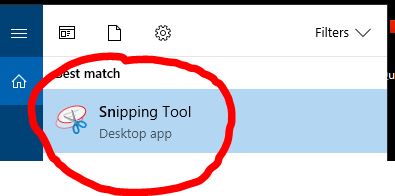 The clunky part about snipping tool is the icon for saving your snips: a floppy disk - that is a technology as obsolete as audio and video cassettes - was some inspiration lacking, Microsoft? When saving the image, there is the handy option to save it in JPEG, PNG, GIF or MHT format. Choose from the drop-down menu when saving your snip. ## How to make image collages Ms Word handles far more than text although these capabilities are not obvious at first glance. Open MS Word and drag and drop your first image on to the page. Clicking an image will bring up a hidden tab on the Word toolbar, presenting you with many more formatting options to play with. Don't be shy to press menu items to see what they do. If you don't like your changes, Ctrl+Z will undo them  Right-click your image to see other options. 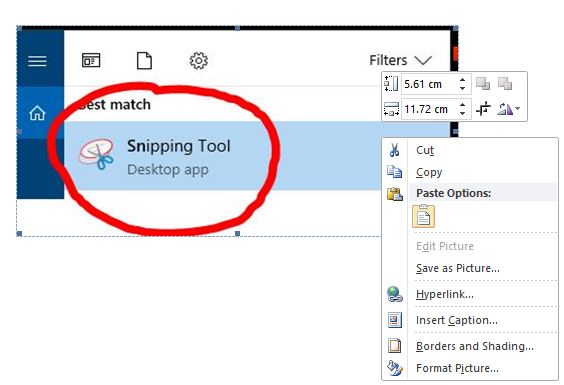 The pop-up menu from the top: first, you can resize the image by changing dimensions. When resizing images, it is better to change either the width or the height only and let MS scale the other dimension. Adjusting both will lead to distortion. You can also rotate images left or right. You can also just click an image and then drag it smaller by clicking on one of the boundary squares. 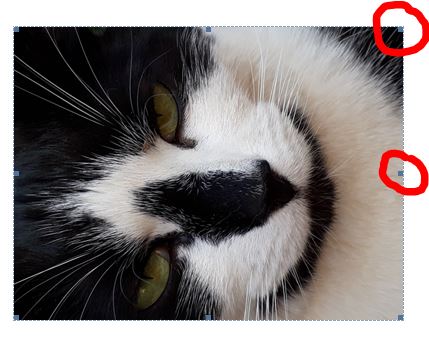 Click in a corner to change the image size proportionately. Clicking on the centre blocks will distort the image. When laying out images, pay attention to the cursor.  If you use the space bar, you will have white space between your images but if you don't, they will butt up against each other so use it according to your preferences. If you want horizontal space between images, use the enter key. If you don't, keep adding them in the same line. Bear in mind that MS Word works with lines and paragraphs and treats images in the same way so if you want to add 2 half sized images in line with a larger image, paste them one above the other.  Use the space bar if you want no white space in between, and enter key if you do want space, snip it with the snipping tool, then drag and drop or paste it next to the larger image. Make sure that there aren't white edges on your snips or you will create space that you didn't want. This can also be used to create white space too.  If you want to make wider collages than the standard page width allows, set your page to landscape orientation 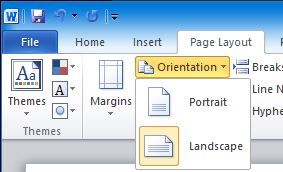 Now that you have made a collage in MS word, how do you turn it back into an image? Snip it! Learning about the image capabilities of MS Word makes it a whole lot more fun to use. If you enjoyed this tutorial, and have any other questions or suggestions for other tutorials, add them in the comments and I'll see if I can help
👍 nikv, bestsmiles, mmkamal, crudens, gavvet, dragonslayer109, timsaid, mandela, steve-walschot, jacor, pharesim, bue, a2jimenez, sustainablyyours, edtorrez, hafis001, xfreemanx, tyche, tiffanyrej, mattias123, dajohns1420, nabilbouasla, cchilds2, garudi, abouche.youness, duekie, debism, ardx.kez14, sisfs, zt111, boncuk, drpomme, ngos, zpzn,